
Table of Contents
Workspace
What is a Workspace?
A Workspace is the environment where multiple users collaborate on the same project.
Within a Workspace, users manage daily operations such as:
- Create Assets
- Managing asbestos registers
- Creating documents
- Tracking Work Orders
Each Workspace functions as an independent space where all information related to a specific project is organised.
Create a Workspaces
There are two ways to create a Workspace:
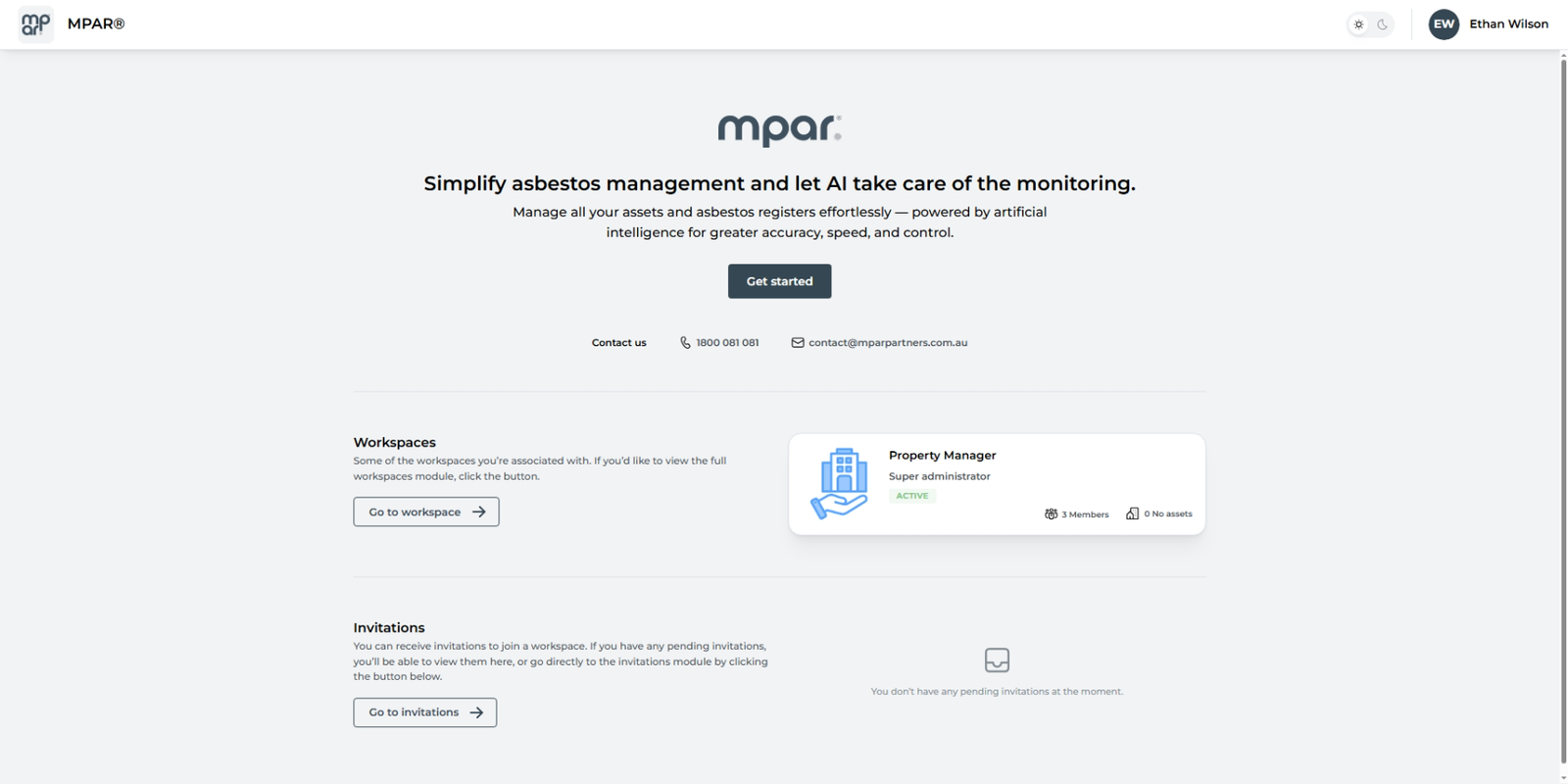
From Home
- On the main screen, click the Get Started button.
- This will begin the Workspace creation process.
From Workspace module
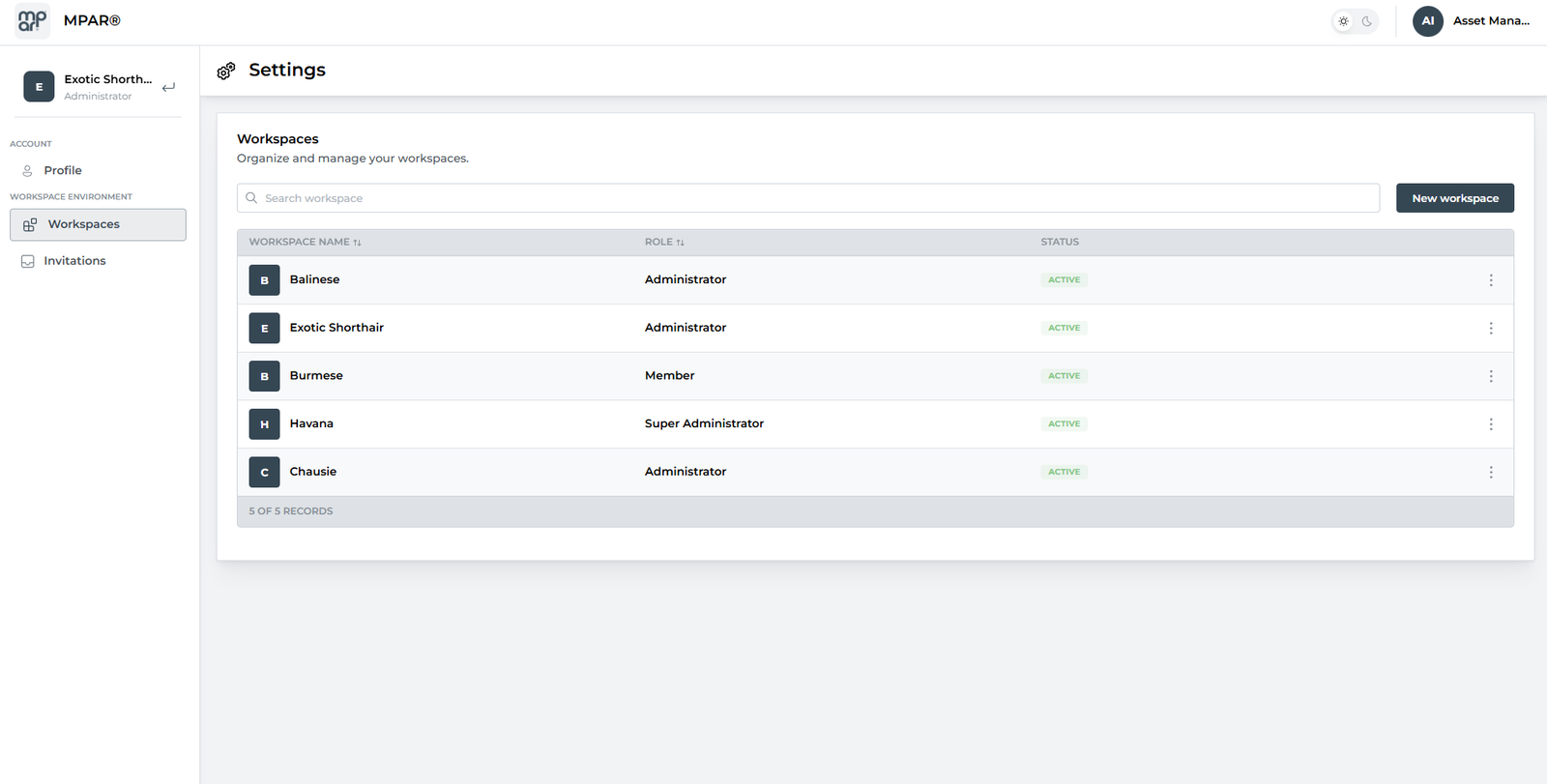
You can also create a Workspace from the Workspaces module, where all the Workspaces you participate in are displayed.
- Go to the Workspaces module.
- Click New Workspace.
- The Workspace creation process will begin.
Workspace status
A Workspace can have three different statuses depending on its Access Key:
Active
The Workspace has a valid Access Key and can operate normally until its expiration date.
No Access Key
The Workspace was created correctly, but the Access Key has been removed.
To reactivate it, please contact the MPAR team.
Expired
The Access Key has reached its expiration date.
You will need to contact the MPAR team to renew the activation.
Roles in a Workspaces
You can participate in multiple Workspaces and have different roles in each one.
Super Administrator
This is the highest-level role within a Workspace.
Super Administrators can:
- Manage settings
- Manage users
- Edit or delete the Workspace
The user who creates the Workspace is automatically assigned this role.
A Workspace must always have at least one Super Administrator.
Administrator
Administrators have broad access within the Workspace.
They can:
- Manage users
- Assign roles
- Create and delete Assets
- Configure general settings
They cannot:
- Delete the Workspace
- Modify the privileges of the Super Administrator
This role is intended for trusted team members who require operational autonomy without full ownership control.
Member
Members are internal users who participate in daily operations.
They can:
- Work on assigned Assets
They cannot:
- Modify global Workspace settings
- Manage other users
Outside Member
Outside Members are external or temporary users with limited access.
They can:
- Access only the Assets explicitly assigned to them
They cannot:
- View global Workspace information
- Manage users
This role is ideal for contractors or external collaborators who need limited, task-specific access.
Edit Workspace
The name and image of a Workspace can be updated at any time.
To edit a Workspace:
- Go to Preferences.
- Select the General tab.
- Update the Workspace name or image.
Leave a Workspace
You can leave a Workspace at any time.
To leave a Workspace:
- Click the name of your current Workspace.
- Select View all workspaces.
- In the Workspaces module, open the menu for the relevant Workspace.
- Click Leave workspace.
- Confirm the action.
Once confirmed, the Workspace will no longer appear in your list.
What happens if I am the only Super Administrator?
You cannot leave the Workspace if you are the only user with the Super Administrator role.
There must always be at least one active Super Administrator.
Can I end up without any Workspaces?
Yes.
If you are not part of any Workspace, you will only be able to manage your account settings or start the process to create a new Workspace.
Invite People to a Workspace
Users with the Super Administrator or Administrator role can invite new members.
To send an invitation:
- Go to the Users module.
- Click Invite.
- Enter the person’s email address.
- Assign a role.
- Confirm the invitation.
The invitation will remain active for one week.
If it is not accepted within that time, it will expire and must be sent again.
Delete a Workspace
Only Super Administrators can delete a Workspace.
To delete a Workspace:
- Go to Preferences > General.
- Click the Delete button.
- Confirm by typing the Workspace name.
This action is irreversible and will permanently delete all associated information.
Role permissions
Edit general settings of a Workspace
| Action | Super Administrator | Administrator | Member | Outside Member |
|---|---|---|---|---|
| Edit Workspace Name | ✓ | ✓ | ✗ | ✗ |
| Edit Workspace logo | ✓ | ✓ | ✗ | ✗ |
| Delete Workspace | ✓ | ✗ | ✗ | ✗ |
Users
| Action | Super Administrator | Administrator | Member | Outside Member |
|---|---|---|---|---|
| Invite persons | ✓ | ✓ | ✗ | ✗ |
| Cancel invitations | ✓ | ✓ | ✗ | ✗ |
| Change usrer's role | ✓ | ✓ | ✗ | ✗ |
| Delete Users | ✓ | ✓ | ✗ | ✗ |
Assets
| Action | Super Administrator | Administrator | Member | Outside Member |
|---|---|---|---|---|
| Create Assets | ✓ | ✓ | ✗ | ✗ |
| Consult Asset detail | ✓ | ✓ | ✓ | ✓ |
| Edit an Asset | ✓ | ✓ | ✗ | ✗ |
| Delete Asset | ✓ | ✓ | ✗ | ✗ |